Login help and account support
Find login instructions, Paycom account support resources and answers to common questions for current and former Paycom users

How to log in to your Paycom account
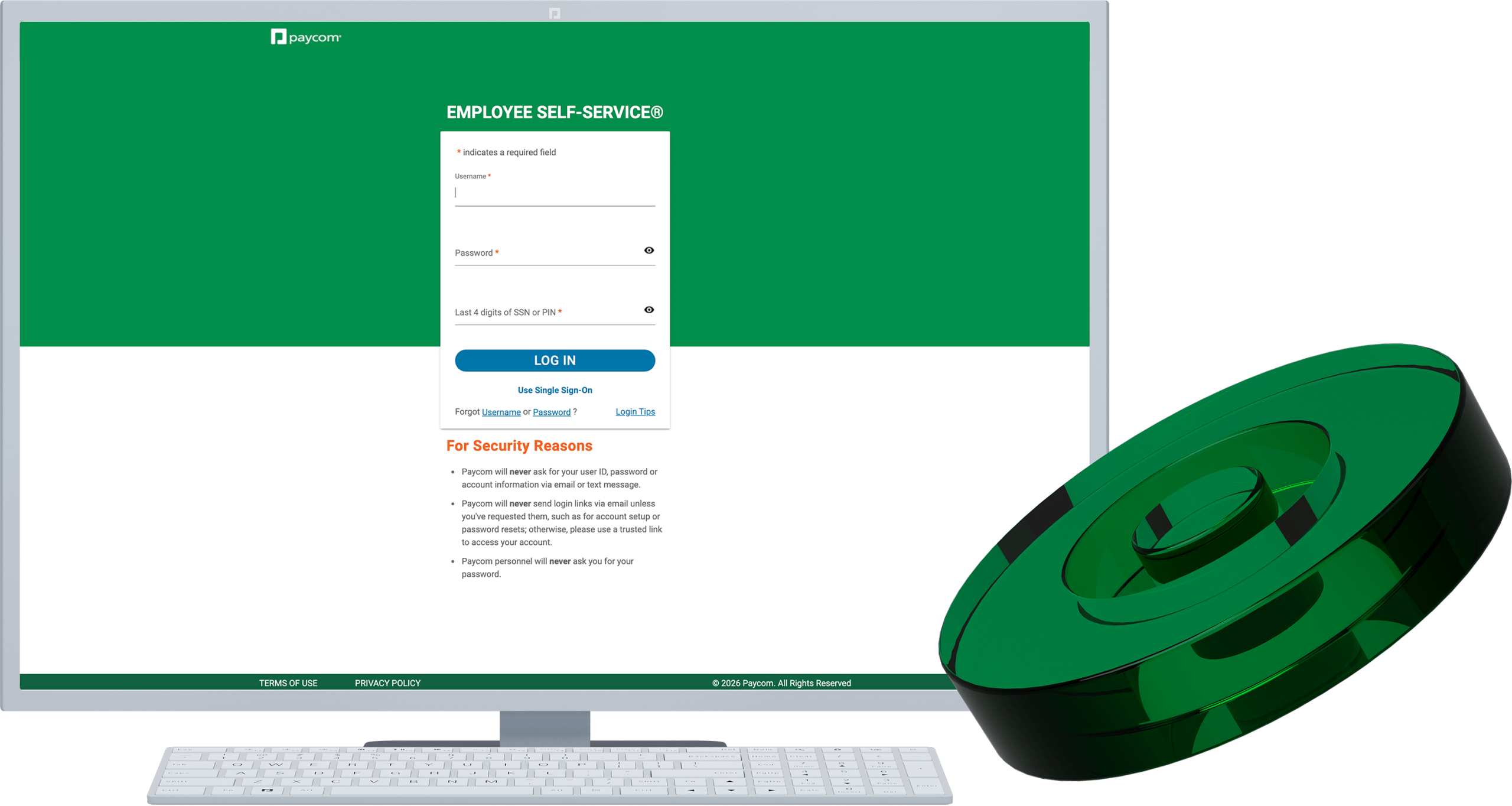
Employees access their account through the Paycom mobile app or by selecting “Login” in the upper-right corner of paycom.com. Because every Paycom account contains sensitive personal information, you may be asked to complete additional security verification before accessing your account.
Step 1: Credentials you need before logging in
Before logging in, make sure you have:
- your Paycom login credentials (username and password)*
- the last four digits of your Social Security number (for U.S.-based users) or PIN (for non-U.S.-based users)
- access to any security verification method your employer requires**
Step 1: Credentials you need before logging in
Step 2: Complete account verification and security

Step 2: Complete account verification and security
To protect your account, Paycom may ask you to verify your identity after entering your login credentials. Be sure to enter the verification code sent to your approved device.
Depending on your organization’s security settings, you may be asked to:
- answer security questions
- use single sign-on
- complete multifactor authentication on a new device
These additional security measures help keep your personal information secure.
Step 3: You’re logged in. Now what?
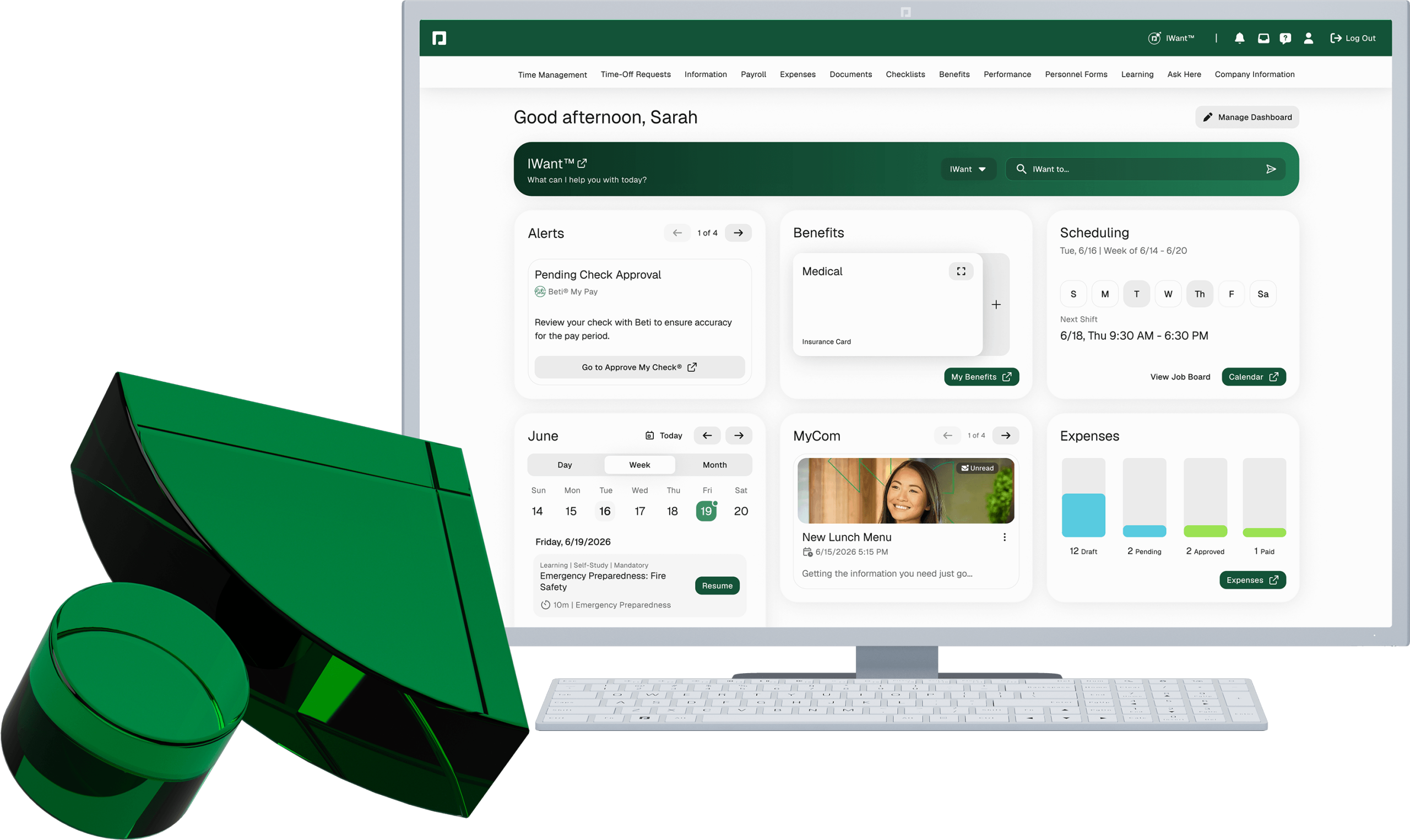
Once you’ve successfully logged in, you’ll be taken to your Paycom dashboard.
From there, you can use IWant™, our command-driven AI engine, to instantly retrieve your data and access the tools you need to easily:
- view and download pay stubs
- access Form W-2 (for U.S.) and other tax documents
- review benefits information
- request time off
- manage personal information
- complete employer-required tasks
The features available to you depend on the options your employer has enabled.
Step 3: You’re logged in. Now what?
Need Paycom account help?
If you are trying to recover your username or password, click the “Forgot Username or Password” link. If you use the Quick Login feature on mobile, we encourage you to click the “LOGIN HELP” button at the bottom of the home screen and follow the prompts to help you reset your login information. If you need further assistance, your organization’s HR team or payroll administrator can help update your information.
For security and privacy reasons, Paycom cannot provide usernames, passwords or employment records directly to employees; you must contact your organization.
If you are a current Paycom client needing help with your account configuration or other troubleshooting issues, please contact your dedicated Paycom specialist.
Need Paycom account help?
If you are trying to recover your username or password, click the “Forgot Username or Password” link. If you use the Quick Login feature on mobile, we encourage you to click the “LOGIN HELP” button at the bottom of the home screen and follow the prompts to help you reset your login information. If you need further assistance, your organization’s HR team or payroll administrator can help update your information.
For security and privacy reasons, Paycom cannot provide usernames, passwords or employment records directly to employees; you must contact your organization.
If you are a current Paycom client needing help with your account configuration or other troubleshooting issues, please contact your dedicated Paycom specialist.
Login FAQs

There are several reasons why a user may be unable to log in to Paycom, including:
- incorrect or invalid username, password or security information
- a forgotten password or locked account after multiple failed login attempts
- an expired password that requires resetting
- browser, device or internet connectivity issues
- multifactor authentication issues, such as not receiving a verification code
- an inactive account or changes made by the employer’s administrator
If login issues persist, users should contact their company’s HR or payroll administrator for assistance. If other support is needed, your company can contact its dedicated Paycom specialist for further information.
If you’ve forgotten or need to change your username and/or password, please contact your company’s HR/payroll team for assistance. For security reasons, only it can help you reset your username and password.
Updated password requirements:
- Passwords must be between eight and 20 characters in length and different from the previous five passwords, including the temporary password assigned upon reset.
- Must include at least three of the four available character types:
- uppercase letter (case sensitive)
- lowercase letter (case sensitive)
- number (0-9)
- special character (accepted special characters: !#@$%^&*()-+=)
- A space cannot be used at the beginning or end of the password.
For mobile, before you log in:
- Click the “Login Help” link on the login screen.
- Click “Reset Quick Login.”
From there, you can change your four-digit PIN.
Please contact your company’s HR/payroll team for assistance. Because of our commitment to ensuring the safety of our clients’ data, we’re unable to access this information. This is also the case if you are no longer employed with that company.
In this instance, please contact your company’s HR/payroll team for assistance.
The software will unlock your account after 10 minutes.
This means you are trying to log in from an IP address that your company does not allow. Please contact your company’s HR/payroll/IT team for assistance.
Employees outside the United States will need their username, password and four-digit PIN to log in to Paycom. For non-U.S. employees, your PIN must be changed in the account settings via Employee Self-Service®.
If you’ve received an “An Error has Occurred” message with a laptop icon displayed, you must contact your HR/payroll/IT team and ask it to contact your company’s dedicated Paycom specialist for additional support.
Yes, you can access the Paycom app on two separate phones or tablets by downloading it on both devices and logging in with your credentials. Paycom’s app is available for Android or iOS-supported mobile devices via the App Store® or Google Play™ store.
Yes. Paycom users can generally log in to the same account through both the Paycom mobile app and the web login experience using their existing credentials.
Select “Login” in the upper-right corner of paycom.com. Hover on “COBRA Account,” then click the arrow to be directed to this login page. You will need your COBRA account number and email address to log in.
Paycom is committed to ensuring the safety of our clients’ data, and that commitment extends to the personal data of their employees. Offering a limited number of login attempts is just one step we take to adhere to those security standards.
Additional verification helps confirm that the person attempting to access the account is authorized. These safeguards help protect sensitive payroll and personal information from unauthorized access.
Paycom can only speak with an authorized business user of your company’s Paycom account. If you need assistance, please reach out to your HR/payroll personnel and have them contact their Paycom specialist.
Paycom’s dedicated specialists are available for our clients during regular business hours. Visit our Contact page for more client support information.
Login FAQs
General Information
Paycom account and software support resources
Current Paycom user FAQs

If you currently work for an organization that uses Paycom, these resources can help answer common questions about accessing your account and using Employee Self-Service. Paycom is available on desktop and on our mobile app for flexible access.
For account-specific questions, contact your HR or payroll administrator.
If you do not have access to Paycom’s Employee Self-Service, please contact your company’s HR/payroll administrator. The features available to you depend on the options your employer has enabled.
Accessing Paycom’s mobile manager tool is done via the main login page of your Paycom mobile app. The availability of this tool depends on the options your employer has enabled. If you do not have access to Paycom’s Manager on-the-Go, please contact your company’s HR/payroll administrator.
In this case, you may need to link the account in your mobile app for Manager on-the-Go to display:
- From the main login page, select “Accounts” within the navigation menu.
- Go to “Manage Accounts.”
- Click “Manager Accounts.”
- Click the “Add Account” button.
- Complete the information in the form and save. It may be necessary to contact your HR/payroll administrator to obtain this credential information.
If you continue to experience issues with the display, contact your administrator and ask them to reach out to their dedicated Paycom specialist for additional support.
Our mobile app, called “Paycom,” is available for free download in the App Store or Google Play.


The mobile time clock must be enabled by your HR/payroll team. Please reach out to it to enable this feature.
Verification methods are managed through account settings and employer configurations. If you are unable to receive a verification code via text message, try the call verification option to complete this two-factor authentication step.
It’s easy to access your pay stubs!
- Log in to Employee Self-Service.
- For mobile users, click the hamburger menu in the bottom-left corner, then click “Payroll.”
- For desktop users, click “Payroll” in the top navigation menu.
- Click “View Pay Stubs.”
When logged in, you can also use IWant to access pay stub information. Simply tell IWant, “Show me my pay stubs,” and your recent pay stubs will be displayed in the chat. To view other years, toggle the year button at the top to the year you want to see.
You can! Just follow these steps to toggle between your employers’ accounts in the Paycom app:
- Log in to either of your accounts in the Paycom app.
- From the main login page, select “Accounts” within the navigation menu.
- Click “Manage Accounts” and then “Employee Self-Service.”
- Tap “Add Account” and log in with your other credentials. This links your other account in the app, and you will not have to log out and log back in each time.
- To switch between accounts, click “Go to Account,” then click “Employee Self-Service” and choose your other employer.
We’re sorry to hear about this, and we’ll do what we can to help. You should know, however, that Paycom is simply the software provider. We can’t provide any information regarding the decision about when or how much an employee is paid. We recommend that you first contact your company’s HR/payroll personnel to check on the status of your payment.
IRS Form W-2s are mailed by Jan. 31 each year.
For faster access, your digital Form W-2 is available through Paycom’s Employee Self-Service. Once you have logged in, click “Payroll” then “Year-End Tax Forms.” Alternatively, ask IWant to view your W-2 and other year-end tax forms.
- Employers have until March 2 to provide Form 1095-C.
- For faster access, you can access the form through Employee Self-Service.
- If you believe you should have received Form 1095-C, contact your employer.
You should receive it no later than Jan. 31.
For faster access, you can access through Employee Self-Service.
- Go to Paycom’s Employee Self-Service portal.
- Log in and click “Payroll.”
- Then click “Year-End Tax Forms.”
If you believe you should have received Form 1099, contact your employer.
Current Paycom user FAQs
Former employees

If you previously worked for an employer that used Paycom, you may still need access to payroll documents such as pay stubs or Form W-2.
For security and privacy reasons, your former employer remains the primary source for employment records and account assistance.
Account availability depends on your former employer’s policies and software configuration. If you need employment records or payroll documents, contact your former employer’s HR or payroll team.
To retrieve your pay stubs from a former employer, please contact that company’s HR or payroll personnel. To ensure data stays secure for your protection, only they can help you retrieve these documents.
If you have not received your Form W-2, 1099 or other tax forms by the mailing deadline, you will need to contact your former employer’s HR/payroll personnel. To ensure data stays secure for your protection, only they can help you retrieve tax forms.
If your mailing address has changed, you may update it in the Paycom app or contact your former employer directly to discuss updating your records and obtaining tax documents.
Form W-9 is retained by the employer. The information on it, however, is reported to the IRS through Form 1099, which is what you receive when applicable.
Former employees
Your privacy and data security matter

Protecting sensitive payroll and employment information is fundamental to Paycom’s software. We maintain security practices designed to help safeguard employee and employer data while providing secure access to authorized users.
For email:
Simply click the “Unsubscribe” link at the bottom of any email message from us.
For physical mail:
If you are not a Paycom client, please click here to submit your removal request. To ensure the correct contact information is removed from our database, please include the full name and address information as seen on the mailing label.
If you are a current Paycom client, please contact your dedicated Paycom specialist.
At Paycom, we recognize and appreciate the enormous responsibility of handling sensitive information, and we take every precaution to protect it. Our comprehensive security standards and technologies are regularly and formally audited and ISO- and SOC-certified.
We invite you to review our security standards, including our statement of commitment, our software’s security features and tips for ensuring privacy on your end. You may also be interested in enabling multifactor authentication, which we can provide when you log in to a new device for the first time.
To read our full data privacy policy, click here.
Submit a data privacy request here. Please note this request excludes any questions related to login issues or requests for information unrelated to privacy.
A data privacy request is for personal information only. This excludes any questions related to login issues or requests for information unrelated to privacy.
Only you or someone legally authorized to act on your behalf may submit a data privacy request related to your personal information.
The request will be handled expeditiously and in accordance with your state’s privacy laws.
Upon submission of the web form, you or someone legally authorized to act on your behalf will receive a response via email, where communication and requests will be conducted through a secure portal.
Please call 800.580.4505.
Your privacy and data security matter
Still Need Help?
For account-specific assistance, please contact your employer’s HR or payroll team first.
For questions related to Paycom’s privacy practices, data requests or security information, visit the Privacy Policy page or submit a data privacy request.